
Install DaytripTracker on your phone
DaytripTracker installs straight from your browser as a web app: it gets its own icon, opens full screen and works on iPhone, Android and desktop. Organisers and participants use the same app.

Install with one tap
Tap Install and confirm. The app gets its own icon on your home screen.
iPhone and iPad: Apple does not allow one-tap installs — after tapping Install you will see the two taps needed in Safari (Share → Add to Home Screen).
After installing, start the app from its icon:
- Participants: choose "I am a participant" and enter the code you received (for example TRP7K2-A4X9).
- Organisers: choose "Organisation" and sign in with your DaytripTracker account.
Manual instructions
iPhone / iPad
-
1
Open this page in Safari.
It must be Safari itself — not the browser inside WhatsApp, Facebook, Instagram or your e-mail app. If the link opened there, tap "Open in Safari" or copy the address into Safari.
-
2
Tap the Share button at the bottom of the screen (the square with an arrow pointing up).
-
3
Scroll down in the menu and choose "Add to Home Screen".
-
4
Tap "Add" in the top-right corner. The DaytripTracker icon now appears on your home screen.
Notifications on iPhone work from iOS 16.4 onwards and only when the app is opened from the home screen icon.
Android
-
1
Open this page in Chrome (or Samsung Internet / Edge).
-
2
Tap "Install app" when Chrome offers it at the bottom of the screen.
No prompt? Tap the menu ⋮ in the top-right corner and choose "Install app" or "Add to Home screen".
-
3
Confirm with "Install". The app appears in your app list and on your home screen.
Desktop
-
1
Open the app in Chrome or Edge.
-
2
Click the install icon at the right end of the address bar (a monitor with an arrow), or open the browser menu and choose "Install DaytripTracker".
-
3
The app opens in its own window and gets a shortcut in your start menu or dock.
On a laptop the QR scanner uses the webcam; a phone is more practical for scanning.
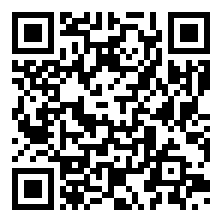
Share this page
Let participants scan this QR code with their camera to reach the install page.
https://daytriptracker.levelitup.be/install
Tip: print the QR code on the participant information sheet or on the QR cards.